
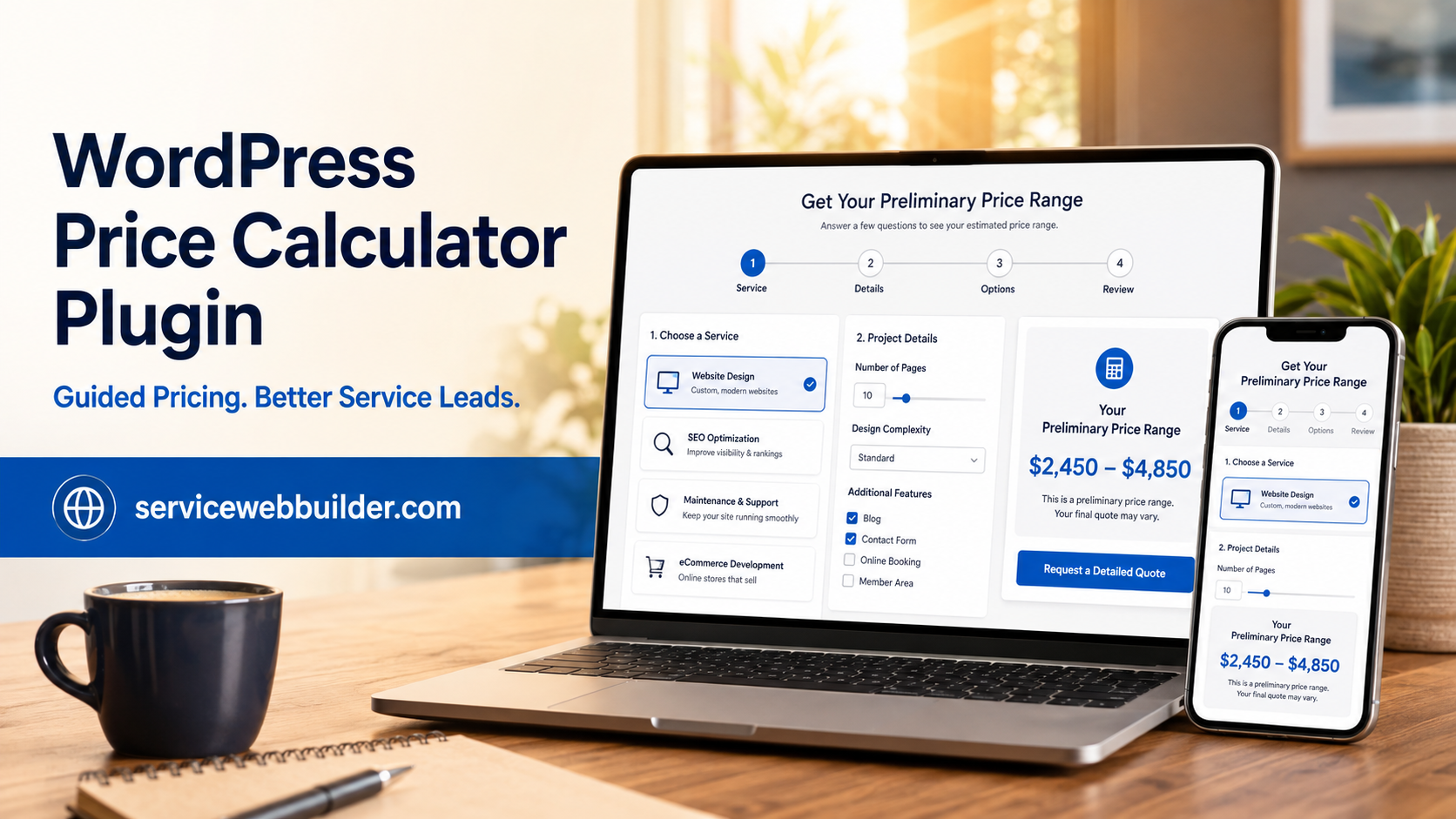
WORDPRESS PRICE CALCULATOR PLUGIN
Add a Service Price Calculator to WordPress
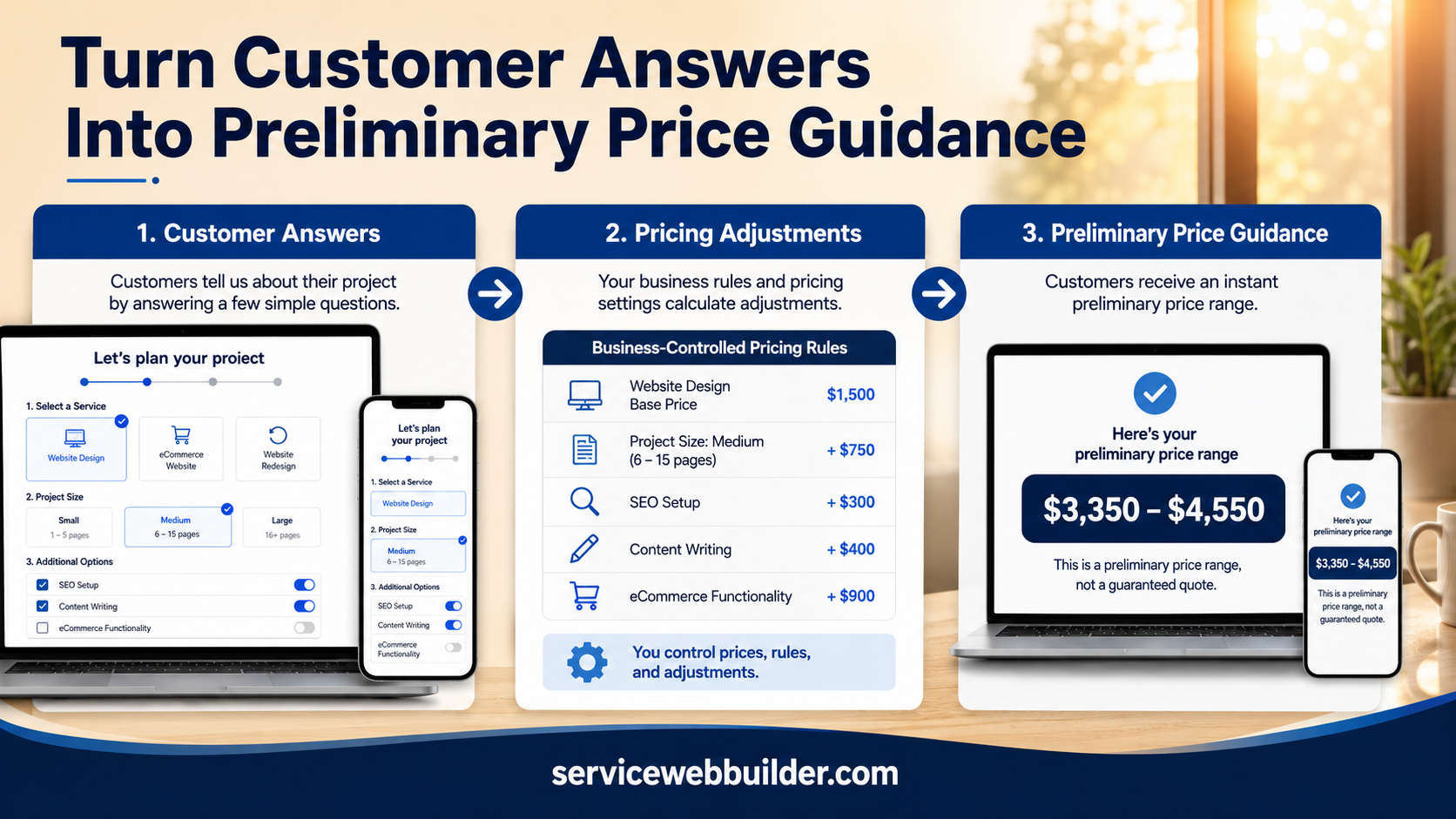
EstimateFlow Pro is a WordPress price calculator plugin for service businesses. It guides visitors through service-specific questions, applies pricing adjustments configured by the business, and can present a fixed price, starting price, or clearly labeled preliminary price range when appropriate.
The completed request can include customer details, notes, and optional project photos for business review. EstimateFlow follows the pricing rules you configure; it does not invent prices or replace your final review.
Explain Pricing Earlier
Match the Pricing Model
Collect the Details Behind the Price
Keep Final Approval With Your Business
Why Add a Price Calculator to a Service Website?
Many service customers want some idea of price before they are ready to call. A page that says only “contact us for pricing” can leave them uncertain about affordability, while a generic contact form may not collect the details your business needs to respond accurately.
A WordPress price calculator gives the visitor a structured way to describe the job and receive useful guidance based on the answers supplied. It can also explain what is included, identify circumstances that may change the amount, and turn the visitor’s interest into an organized estimate request.
EstimateFlow Pro is designed for service businesses whose prices depend on understandable factors. Your business creates the questions, choices, adjustments, range language, and disclaimer.
Choose the Right Way to Present a Price
Fixed price: Use a fixed amount when the service is standardized, the scope can be confirmed through the form, and the same inclusions apply consistently.
Starting price: A starting price works when every accepted job has a known minimum but options, quantity, access, or condition can increase the total.
Preliminary range: A range is usually safer when multiple answers influence the work or when photos and written details cannot reveal every site condition. Label it clearly and state that your team will review the request before confirming a final quote.
Build Price Transparency Without False Precision
Useful transparency does not require publishing a guaranteed amount for work that has not been inspected. It means helping customers understand how your business approaches price, which factors matter, and what happens after they submit the request.
Ask only questions that affect the service, price guidance, safety, equipment, or decision to accept the job. Common factors include size, quantity, condition, material, stairs, distance, access, urgency, service frequency, and optional add-ons.
Use plain labels such as “estimated range,” “starting at,” or “preliminary price guidance.” Avoid extra decimals or overly narrow ranges when the inputs cannot support that level of accuracy.
Use Photos to Support Better Price Guidance
Optional photo uploads can give your team useful context about condition, volume, access, surfaces, obstacles, or visible project details. The images arrive with the customer’s answers, notes, contact information, and displayed range, keeping the request together for review.
Photos are especially helpful when customers struggle to describe a job in words. Images still cannot confirm hidden damage, exact measurements, material composition, permits, or every site condition. When those details matter, keep the result preliminary.
Customer-Friendly Pricing
Business-Controlled Rules
Qualified Estimate Requests
01
Answer Pricing Questions
02
View Appropriate Guidance
03
Send the Request for Review
Put Price Guidance Where Customers Make Decisions
Open the estimator from a floating Get Estimate button, use a page-specific popup, embed it in a suitable page section, place it with Elementor, or use the shortcode fallback. A global estimator can serve a simple website, while separate service estimators can match the questions and pricing factors on individual pages.
Keep the page’s useful explanation visible outside the calculator so visitors can learn about the service, inclusions, limitations, process, and common pricing factors before opening the estimate flow.
Price Calculator vs. Cost Calculator: What Is the Difference?
The terms often overlap, but customers usually think about the price they may pay, while a business may think about the costs and pricing inputs used to develop that number. A customer-facing price calculator should emphasize clarity: what the displayed guidance means, what may change it, and what the visitor should do next.
The related WordPress cost calculator plugin page explains rule-based inputs and adjustments in more detail.
Service Price Calculator Examples
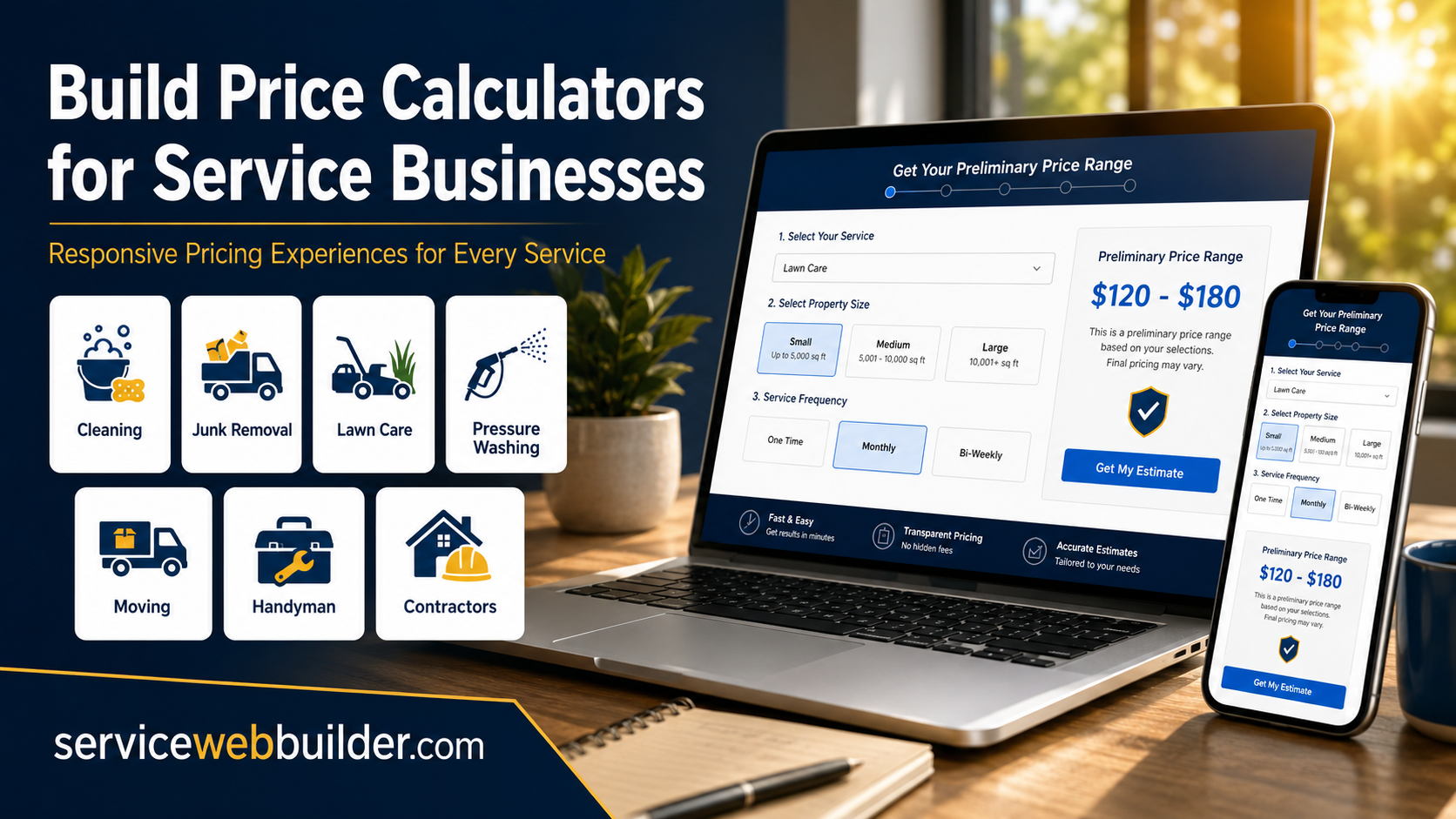
Cleaning, lawn-care, junk-removal, pressure-washing, moving, handyman, and contractor businesses can configure questions and pricing factors around the work they actually perform.
Design the Result Around Customer Expectations
Show the result only after the visitor has supplied the inputs needed to make it meaningful. Place the pricing label close to the amount, explain important assumptions, and keep the next action obvious.
Configure Your First WordPress Price Calculator
Begin with one service whose common price factors are already understood. Add your answer choices and adjustments, select the most honest presentation model, edit the result wording and disclaimer, and test every path on desktop and a real phone.
Use a Page-Specific Calculator for More Relevant Guidance
Page-specific popup selection lets each service page open the correct estimator while a broader sitewide flow remains available elsewhere, keeping terminology, pricing factors, disclaimers, and photo prompts relevant to that service.
Compare Related EstimateFlow Resources
Learn how the WordPress estimate calculator plugin handles guided requests, explore pricing inputs on the cost calculator page, or see Estimate Calculator vs. Contact Form. You can also view the demo and review EstimateFlow Pro pricing.
Give Customers Better Price Guidance
EstimateFlow Pro combines multi-step questions, business-defined adjustments, required-answer validation, editable result wording, preliminary ranges, lead capture, and optional photo uploads in one WordPress workflow.