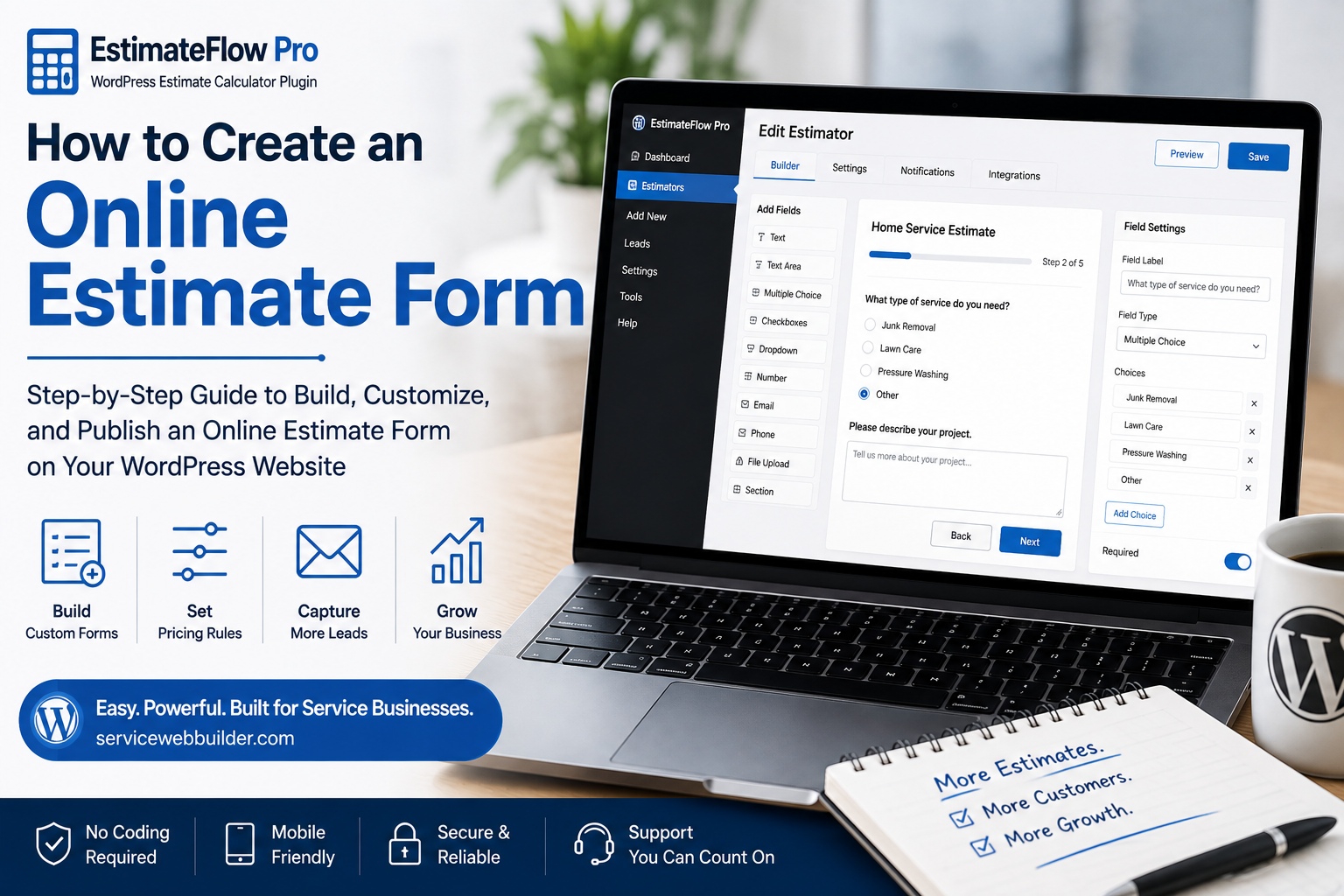
How to create an online estimate form in WordPress with EstimateFlow Pro
ONLINE ESTIMATE FORM PLANNING GUIDE

How to Create an Online Estimate Form for a Service Business

To create an online estimate form for a service business, identify the job details that affect qualification or price, turn those factors into simple customer questions, decide which answers are required, configure responsible preliminary price guidance, collect contact details and optional photos, and test the complete form on mobile and desktop before publishing. A useful estimate form is more than a long contact form. It guides visitors through service-specific questions, gathers information the business can actually use, and clearly explains whether the displayed amount is preliminary guidance or whether the request requires manual review.

Quick Answer: What Should an Online Estimate Form Include?

A service-business estimate form should collect only information that helps qualify the job, prepare preliminary pricing, identify important conditions, or support follow-up.

  1. Service or project type so the request enters the correct estimating path.
  2. Size, quantity, or scope that affects labor, materials, equipment, or time.
  3. Condition and access details such as stairs, gates, distance, obstacles, or difficulty.
  4. Supported options or add-ons that may change the scope.
  5. Preliminary price guidance or manual review based on the information available.
  6. Customer contact details needed for the business to respond.
  7. Optional photos and notes when visual context helps clarify the job.
  8. Clear confirmation and next-step wording after submission.

Included work

List the services, property types, materials, and project conditions the business wants to receive.

Unsupported work

Identify prohibited items, unsafe conditions, licensing limits, service-area restrictions, and projects needing another provider.

Next step

Decide whether the business will call, text, email, inspect the job, or prepare a formal quote after review.
WordPress online estimate form builder for service businesses

Step 1: List Every Factor That Changes the Work

Think through the first conversation your business normally has with a new customer. Record the details that change labor, equipment, materials, access, disposal, travel, or service eligibility. Examples include property size, load volume, grass height, surface type, item quantity, stairs, gates, condition, distance, specialty materials, and add-ons. Do not turn every thought into a form question yet; first create a complete working list.

Step 2: Turn Pricing Factors Into Simple Questions

Rewrite each useful factor as a question a customer can answer without professional knowledge. “What is the approximate lot size?” is easier than requesting exact mowable square footage. “Where are the items located?” is clearer than asking customers to calculate labor difficulty.
  • Use familiar words instead of internal trade terminology.
  • Ask one main thing per step.
  • Give enough answer choices to be accurate without overwhelming the visitor.
  • Include “other” or “not sure” when forcing a choice would create bad information.
  • Explain unfamiliar measurements with examples.
  • Place sensitive or unnecessary questions outside the public form.

Usually required

Service type, primary scope factor, essential access or safety answers, name, and a reliable contact method.

Often optional

Additional notes, secondary preferences, photos, alternate contact method, and information that does not affect qualification.
Customer using mobile online estimate form on WordPress website

Step 4: Design Answer Choices and Preliminary Ranges

Answer choices should match the business’s actual pricing or qualification model. Size bands, quantities, condition levels, and service options can connect to adjustments when the relationship is consistent. Use a range instead of a single exact amount when conditions create uncertainty. If a service cannot be estimated responsibly online, collect the information and display a manual-review message instead.
  • State what the preliminary range assumes.
  • Explain that inaccurate answers can change the price.
  • Identify work that requires inspection or direct review.
  • Do not call preliminary guidance a guaranteed final quote.
  • Keep final acceptance and pricing with the business.

Step 5: Build the Guided Form in EstimateFlow Pro

Create the estimator, add the questions in their natural order, configure answer choices, and set required validation. Add only adjustments supported by the business’s real method. Review the flow from the customer’s perspective. The visitor should understand why each question is being asked and should not have to scroll through a crowded wall of fields.

Step 6: Ask for Contact Details at the Right Time

Let the visitor provide useful project details before presenting the contact step. This gives the form an immediate purpose and allows the customer to see that the business understands the service. Collect the minimum contact information needed for follow-up. Explain how the business will respond and do not claim instant scheduling, guaranteed availability, or a final contract when the form does not provide those functions.

Step 7: Add Photos, Consent, and Confirmation

Optional photo uploads can provide context for condition, volume, access, materials, or visible damage. Tell customers what images are helpful and remind them not to upload private documents, passwords, or unrelated personal information. Use a clear submission button, short waiting message, and confirmation that explains what was received. The success message should state the next step without promising a response time the business cannot consistently meet.

Step 8: Test the Finished Form on Mobile

Complete the form on a real phone and desktop browser. Check question length, button size, progress, required messages, photo uploads, contact validation, preliminary wording, submission, and the saved lead record. Test popup placement and floating actions separately on mobile and desktop. Clear browser and website caches after changing display settings, then retest the live page rather than only the editor.

Step 9: Review Lead Quality and Improve the Questions

After the form receives real requests, compare the answers with what your business still has to ask during follow-up. If the same missing detail appears repeatedly, add or improve one focused question. If visitors abandon the form at a certain step, simplify it. Remove questions that do not affect pricing, qualification, safety, or follow-up. A shorter form with useful answers is better than a long form that looks comprehensive but produces incomplete submissions.

Example Service-Business Estimate Form

  1. Select the service needed.
  2. Choose the approximate size, quantity, or volume.
  3. Describe the condition or difficulty.
  4. Identify access, stairs, gates, distance, or obstacles.
  5. Select supported add-ons.
  6. Confirm that prohibited or unsupported conditions are not present.
  7. View the preliminary range or manual-review message.
  8. Add contact details and optional photos.
  9. Review the disclaimer and submit the request.

This sequence is a starting framework. Cleaning, junk removal, lawn care, pressure washing, handyman, moving, and contractor forms should each use industry-specific questions rather than copied generic wording.

Online Estimate Form FAQs

What is an online estimate form?

An online estimate form is a website form that collects job details a business can use to qualify a request, prepare preliminary pricing, or decide whether the project needs manual review before a final quote.

How is an estimate form different from a contact form?

A contact form usually collects basic contact information and a message. An estimate form asks structured, service-specific questions about scope, size, quantity, condition, access, options, or other factors that help the business understand the work.

Should an estimate form show an exact price?

Only when the business can support that price from the information collected. For variable work, a preliminary range or manual-review result can avoid implying more precision than the customer answers justify.

How many questions should an estimate form have?

Use enough questions to qualify the request and support pricing or follow-up, but remove questions that do not affect those decisions. The ideal length depends on the service and complexity of the work.

Can customers upload photos with an online estimate form?

Yes. Optional photos can help show visible condition, volume, access, materials, items, or the work area when those details are useful for review.

Can I create an online estimate form in WordPress?

Yes. EstimateFlow Pro is designed to create guided service-business estimators in WordPress and can be used with supported WordPress placement options such as Elementor, shortcodes, embedded forms, or popup experiences.

Build the Form in WordPress

Turn the way your business already qualifies work into a guided online estimate experience with clear questions, responsible pricing language, and organized lead capture.

Explore the online estimate form for WordPress, follow the guide to add an estimate calculator, review EstimateFlow Pro features, browse the industry examples, or visit the EstimateFlow Pro documentation for setup instructions.